How to Create a Mascot Logo with an AI Agent and a Skill
If you are building an app, productivity tool, game, or personal project and want a cute, recognizable mascot but are not confident in your drawing skills, try the AI agent + skill approach.
You do not need to work out complicated prompts yourself. Install a skill specifically designed for mascot logo design and generation in your AI agent, and you can start creating right away.
What you need
First, choose an AI agent that supports image generation.
Examples include:
- ChatGPT
- Claude
- Gemini
- Other AI agents that support skills
Then enter the following command in your agent:
npx skills@latest add s1dashu/ip-as-logo-skill
The agent will recognize and install the skill.
Once installation is complete, tell the AI what kind of mascot you would like to design.
Start designing
For example, to create a mascot for a productivity tool, you can enter:
Design a very simple, cute little bear mascot with rounded shapes for my productivity tool. Use a muted dark blue background.
The skill will then start designing based on your requirements.
This approach first organizes the product context and design requirements, then develops candidate designs step by step, going beyond a simple request to "draw me a logo."
The overall workflow
By default, the skill follows these steps:
- Understand the product
It starts by understanding what your product does, who it is for, and what role the mascot should play. If the agent can read your project context, it will use that information in its analysis. - Propose 3 design directions
The AI proposes three different design directions before generating images. - Develop candidate designs
The default recommendation is 6 separate candidate images, giving you several options to choose from. - Confirm the design plan
After confirmation, the skill generates six final candidate images labeled fromA1toC2. - Apply consistent visual guidelines
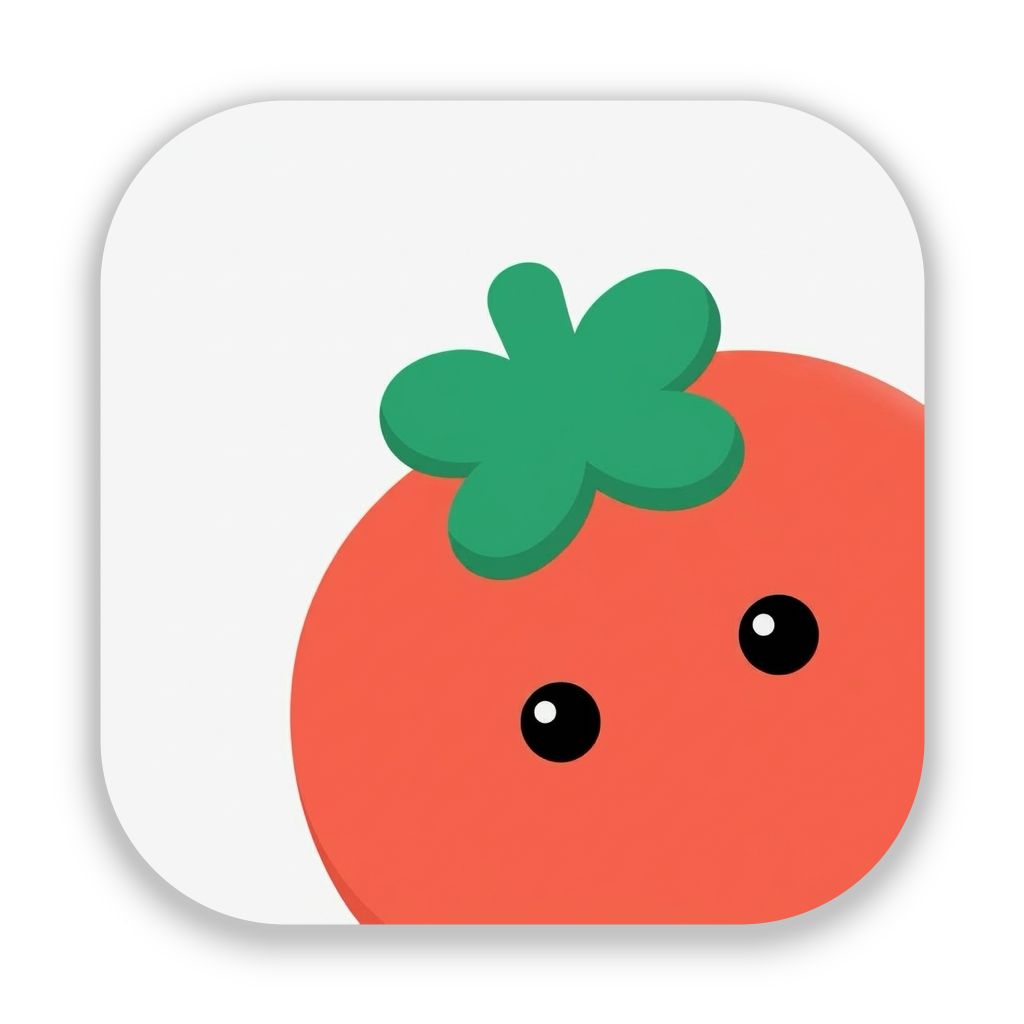
Each image uses a square composition and three colors with defined roles. The mascot enters the frame from the lower-left or lower-right corner, making it suitable for different uses across your product.
This turns a casual request for an AI-generated image into a more complete mascot design workflow.
Image generation results
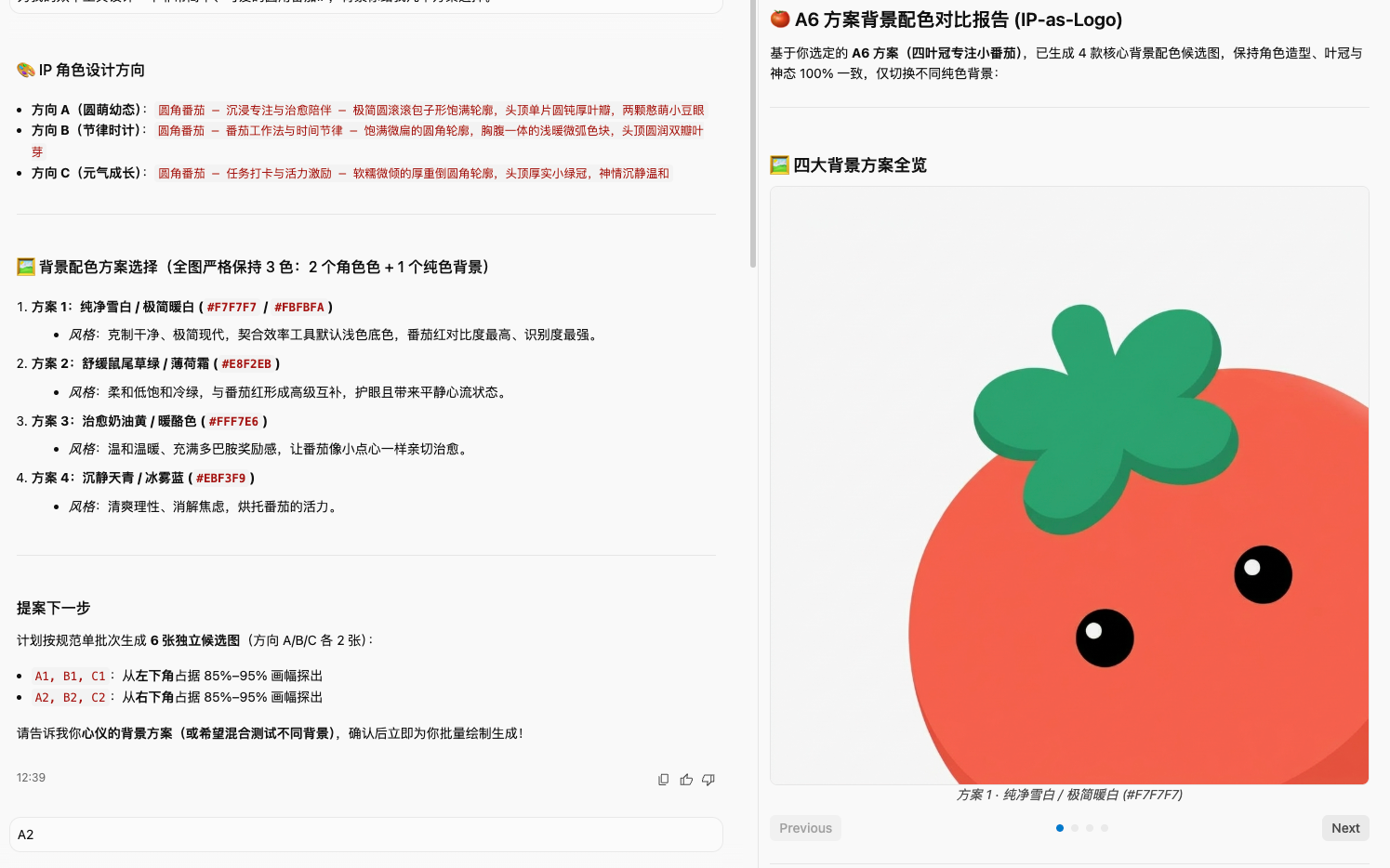
Gemini example
Prompt:
Design a very simple, cute tomato mascot with rounded shapes for my productivity tool. Give me a few background color options to choose from.
Here are the final results:
71views
Comments
No comments yet. Be the first to join the conversation.